

Table Of Content
- Understanding Malware and Its Threats
- What Is Malware?
- Types of Malware You Should Know About
- Viruses
- Trojans
- Ransomware
- Spyware and Adware
- Why Scanning Files for Malware Is Essential
- Protecting Your Personal Information
- Preventing System Damage
- Maintaining Computer Performance
- Signs Your Computer May Be Infected
- Slow Performance and Frequent Crashes
- Unusual Pop-Ups and Ads
- Unexplained File Changes
- Preparing to Scan for Malware
- Backing Up Your Important Files
- Disconnecting from the Internet
- Booting into Safe Mode
- Choosing the Right Antivirus Software
- Free vs. Paid Antivirus Solutions
- Top Antivirus Programs in 2025
- Features to Look For
- Step-by-Step Guide to Scanning Files
- Installing Your Antivirus Software
- Updating Virus Definitions
- Running a Full System Scan
- Scanning Specific Files and Folders
- Scheduling Regular Scans
- What to Do When Malware Is Detected
- Quarantining Infected Files
- Deleting or Repairing Files
- Reviewing Scan Results Carefully
- Advanced Malware Removal Techniques
- Using Malware-Specific Removal Tools
- Manual Removal Methods
- Restoring Your System
- Preventing Future Malware Infections
- Keeping Your Software Updated
- Being Cautious with Email Attachments
- Using Strong Passwords and Authentication
- Installing a Firewall
- Mobile Device Malware Scanning
- Scanning Android Devices
- Protecting iOS Devices
- Common Mistakes to Avoid
- Conclusion
- FAQs
Have you ever felt that sinking feeling when your computer starts acting weird? Maybe it’s slower than usual, or strange pop-ups keep appearing out of nowhere. These could be signs that malware has infiltrated your system. Don’t worry—you’re not alone, and there’s a clear path forward. Learning how to scan files and remove malware is one of the most important skills you can develop as a computer user today.
In this comprehensive guide, I’ll walk you through everything you need to know about detecting and eliminating malware from your devices. Whether you’re a tech novice or someone with a bit of experience, you’ll find practical steps and tips that actually work.
Understanding Malware and Its Threats
What Is Malware?
Malware is short for “malicious software,” and it’s exactly what it sounds like—software designed to harm, exploit, or otherwise compromise your computer or personal data. Think of it as the digital equivalent of germs that can make your computer “sick.” Just as you wouldn’t want bacteria spreading through your home, you don’t want malware spreading through your files.
Types of Malware You Should Know About
Not all malware is created equal. Understanding the different types helps you recognize what you’re dealing with and how to address it effectively.
Viruses
Computer viruses attach themselves to legitimate files and spread when those files are shared or executed. They can corrupt data, delete files, or even render your entire system unusable. Like biological viruses, they need a host to survive and replicate.
Trojans
Named after the famous Trojan Horse, these programs disguise themselves as legitimate software but contain malicious code. You might think you’re downloading a helpful utility, but you’re actually inviting danger into your system.
Ransomware
This particularly nasty type of malware encrypts your files and demands payment for their release. It’s like someone breaking into your house, locking all your belongings in safes, and demanding money for the combinations.
Spyware and Adware
Spyware secretly monitors your activities and collects personal information without your knowledge. Adware bombards you with unwanted advertisements and can track your browsing habits. Both are invasive and compromise your privacy.
Why Scanning Files for Malware Is Essential
Protecting Your Personal Information
Your computer likely contains sensitive information—passwords, financial details, personal photos, and important documents. Malware can steal this information and use it for identity theft, fraud, or blackmail. Regular scanning acts as your digital security guard, watching for threats before they can do damage.
Preventing System Damage
Malware doesn’t just steal information; it can also destroy it. Some malicious programs delete files, corrupt system settings, or damage hardware through overuse. Catching these threats early prevents irreversible damage.
Maintaining Computer Performance
Ever noticed your computer suddenly running like it’s stuck in molasses? Malware often consumes system resources, slowing everything down. Regular scans help keep your computer running smoothly by identifying and removing these performance hogs.
Signs Your Computer May Be Infected
Slow Performance and Frequent Crashes
If your computer takes forever to start up, programs freeze regularly, or you’re seeing the dreaded blue screen of death more often, malware might be the culprit. While these issues can have other causes, they’re definitely red flags worth investigating.
Unusual Pop-Ups and Ads
Are advertisements appearing when you’re not even browsing the web? Do pop-ups keep interrupting your work, even when you’ve closed all your browsers? These are classic signs of adware infection.
Unexplained File Changes
Files disappearing, new programs you didn’t install appearing, or your homepage changing without your permission—these mysterious changes often indicate malware is actively working on your system.
Preparing to Scan for Malware
Backing Up Your Important Files
Before you start scanning and removing malware, back up your essential files to an external drive or cloud storage. Why? Because sometimes malware removal can accidentally affect legitimate files, or in rare cases, malware might have embedded itself so deeply that system restoration becomes necessary.
Disconnecting from the Internet
This might seem counterintuitive, but disconnecting from the internet before scanning prevents malware from communicating with external servers, downloading additional threats, or spreading to other devices on your network. It’s like quarantining a patient to prevent infection spread.
Booting into Safe Mode
Safe Mode loads only essential system files and drivers, making it harder for malware to hide or resist removal. Think of it as creating a controlled environment where threats are easier to spot and eliminate. To access Safe Mode on Windows, restart your computer and press F8 repeatedly during startup. On Mac, hold the Shift key during restart.
Choosing the Right Antivirus Software
Free vs. Paid Antivirus Solutions
Both free and paid antivirus programs can effectively protect your computer, but they come with different feature sets. Free versions typically offer basic scanning and protection, while paid versions include extras like VPN services, password managers, and advanced threat detection. For most home users, a reputable free antivirus provides adequate protection.
Top Antivirus Programs in 2025
Several excellent antivirus programs dominate the market today. Windows Defender (built into Windows) has become surprisingly robust and is completely free. Other popular choices include Malwarebytes, Norton, Bitdefender, and Kaspersky. Each has strengths—some excel at detecting zero-day threats, others offer better system performance, and some provide more comprehensive security suites.
Features to Look For
When selecting antivirus software, prioritize real-time protection (continuous monitoring), regular automatic updates (to catch the latest threats), low system impact (so it doesn’t slow your computer), and a strong track record in independent testing. User-friendliness matters too—the best antivirus is one you’ll actually use consistently.
Step-by-Step Guide to Scanning Files
Installing Your Antivirus Software
Download your chosen antivirus directly from the official website—never from third-party sources, as these can contain malware disguised as security software. Follow the installation wizard, and when prompted, allow the software to perform an initial scan. This first scan establishes a baseline for your system.
Updating Virus Definitions
Virus definitions are like the most-wanted lists that help your antivirus recognize threats. New malware appears constantly, so these definitions need regular updates. Most antivirus programs update automatically, but you can manually check for updates before running a scan to ensure you’re protected against the latest threats.
Running a Full System Scan
A full system scan examines every file on your computer—it’s thorough but time-consuming, often taking several hours. Launch your antivirus software, select “Full Scan” or “Complete Scan,” and let it run. This is a great time to grab lunch or take care of other tasks, as your computer will be working hard in the background.
Scanning Specific Files and Folders
Don’t want to scan your entire system? You can target specific files or folders instead. Right-click on the file or folder you want to check and select “Scan with [your antivirus name].” This is particularly useful for scanning downloads before opening them or checking external drives.
Scheduling Regular Scans
Prevention beats cure every time. Set up automatic weekly scans during times when you’re not typically using your computer—maybe late at night or early morning. This ensures continuous protection without disrupting your work.
What to Do When Malware Is Detected
Quarantining Infected Files
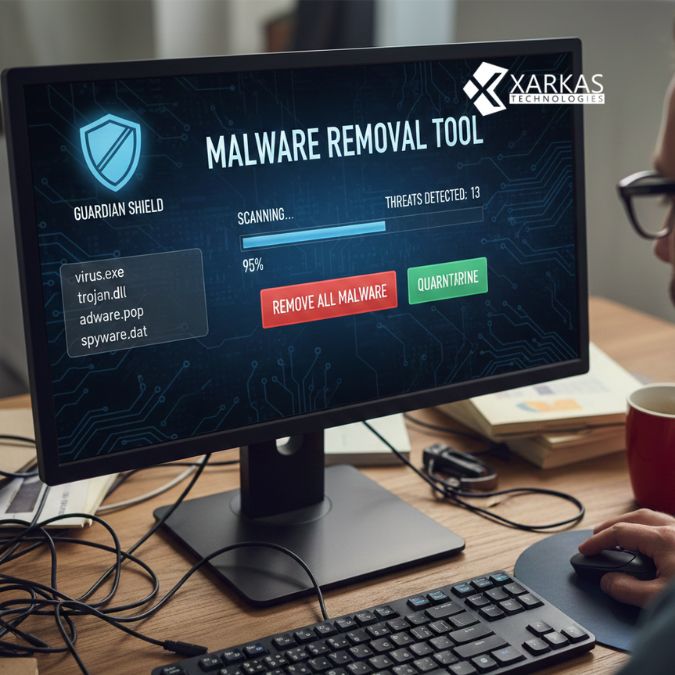
When your antivirus finds something suspicious, it typically quarantines the file—essentially isolating it so it can’t harm your system. The file remains on your computer but can’t execute or spread. This is a safety measure in case the detection is a false positive (a legitimate file mistakenly identified as malware).
Deleting or Repairing Files
After quarantine, you’ll need to decide what to do with infected files. If the file is clearly malicious, delete it. If it’s a legitimate program that’s been infected, some antivirus programs can attempt to repair it by removing just the malicious code. However, repair isn’t always successful, and you may need to reinstall the program from a clean source.
Reviewing Scan Results Carefully
Don’t just click “Remove All” without thinking. Review what your antivirus found. False positives happen, especially with aggressive security settings. If something important is flagged, research it online before deleting. Legitimate system files or newly developed software sometimes trigger warnings.
Advanced Malware Removal Techniques
Using Malware-Specific Removal Tools
Sometimes standard antivirus programs struggle with particularly stubborn infections. Specialized removal tools target specific types of malware. For example, tools like Malwarebytes Anti-Rootkit specifically hunt for rootkits, while others focus on ransomware or spyware. These tools complement your main antivirus rather than replacing it.
Manual Removal Methods
When automated tools fail, manual removal might be necessary—though this requires technical knowledge. This involves identifying malicious processes in Task Manager, deleting registry entries, and removing infected files from system folders. If you’re not confident doing this, consult a professional rather than risking system damage.
Restoring Your System
If malware has caused extensive damage or proves impossible to remove, system restoration might be your best option. Windows System Restore can roll your computer back to an earlier, uninfected state. As a last resort, a complete system reinstallation wipes everything clean but requires reinstalling all your programs and restoring data from backups.
Preventing Future Malware Infections
Keeping Your Software Updated
Software updates aren’t just about new features—they patch security vulnerabilities that malware exploits. Enable automatic updates for your operating system, browsers, and all programs. Think of updates as reinforcing the locks on your doors; old, unpatched software is like leaving your door wide open.
Being Cautious with Email Attachments
Email remains one of the most common malware delivery methods. Never open attachments from unknown senders, and be skeptical even with emails from people you know if they seem unusual. When in doubt, contact the sender through a different method to verify they actually sent the attachment.
Using Strong Passwords and Authentication
Weak passwords are like leaving your key under the doormat—everyone knows to look there. Use unique, complex passwords for each account, and enable two-factor authentication wherever possible. Password managers can help you maintain strong, unique passwords without having to remember them all.
Installing a Firewall
Firewalls monitor incoming and outgoing network traffic, blocking suspicious connections. Windows includes a built-in firewall that’s enabled by default—make sure it stays on. For additional protection, consider a hardware firewall through your router’s settings.
Mobile Device Malware Scanning
Scanning Android Devices
Android devices are vulnerable to malware, particularly when installing apps from outside the Google Play Store. Install a reputable mobile antivirus app like Avast Mobile Security, Norton Mobile Security, or Bitdefender Mobile Security. Run regular scans, and only download apps from trusted sources.
Protecting iOS Devices
While iOS is generally more secure due to Apple’s strict app review process and sandboxing, it’s not invulnerable. Keep your iOS updated, only install apps from the App Store, and be cautious about clicking links in messages or emails. If your device is jailbroken, it’s significantly more vulnerable and should have antivirus protection.
Common Mistakes to Avoid
One major mistake is assuming you’re safe because you “only visit trusted websites.” Malware doesn’t discriminate—even legitimate sites can be compromised and serve malicious content. Another error is ignoring that nagging update notification; postponing updates leaves vulnerabilities open.
Many people also make the mistake of running multiple antivirus programs simultaneously, thinking more is better. Actually, multiple antivirus programs often conflict with each other, creating system instability and reducing protection. Stick with one comprehensive solution.
Finally, don’t assume that completing one scan means you’re permanently safe. Malware protection requires ongoing vigilance, regular scans, and good security habits.
Conclusion
Scanning files and removing malware doesn’t have to be intimidating. By understanding what malware is, recognizing infection signs, choosing reliable antivirus software, and following proper scanning procedures, you can effectively protect your digital life. Remember that prevention is always easier than cure—practicing safe browsing habits, keeping software updated, and running regular scans will keep most threats at bay.
Your computer is a gateway to your personal and professional life. Protecting it from malware isn’t just about preserving the hardware; it’s about safeguarding your privacy, identity, and peace of mind. Take these steps seriously, make them routine, and you’ll drastically reduce your risk of infection.
Stay vigilant, stay protected, and don’t let malware win!
FAQs
1. How often should I scan my computer for malware?
You should run a full system scan at least once a week. However, if you frequently download files, visit unfamiliar websites, or notice unusual computer behavior, scan more often. Real-time protection should always be active for continuous monitoring between scheduled scans.
2. Can I use multiple antivirus programs for better protection?
No, running multiple antivirus programs simultaneously usually causes more problems than it solves. Different antivirus programs can conflict with each other, leading to system crashes, false positives, and reduced overall protection. Choose one reliable antivirus solution and stick with it.
3. What should I do if my antivirus can’t remove detected malware?
First, try booting into Safe Mode and scanning again—this prevents malware from actively running and makes removal easier. If that doesn’t work, use specialized malware removal tools designed for stubborn infections. As a last resort, consider professional help or performing a system restore to an earlier, clean state.
4. Are free antivirus programs effective enough?
Yes, many free antivirus programs offer excellent basic protection for most users. Windows Defender, which comes built into Windows, has become quite effective. However, paid versions typically offer additional features like VPN services, password managers, and premium customer support that some users find valuable.
5. How can I tell if a malware warning is legitimate or a scam?
Legitimate malware warnings come from your installed antivirus software and appear within the program’s interface. Pop-ups claiming your computer is infected that appear in your web browser, especially those urging immediate action or payment, are almost always scams. Never click on these—close your browser instead and run a scan with your legitimate antivirus software.





No Comment! Be the first one.