


Table Of Content
- Introduction to Game Streaming
- Essential Equipment for Game Streaming
- a. PC Hardware Requirements
- b. Internet Connection Specifications
- c.Additional Peripherals
- Choosing Your Streaming Platform
- a.Twitch
- b. YouTube Gaming
- d. Facebook Gaming
- e. Other Platforms
- Selecting Broadcasting Software
- a. OBS Studio
- b. Streamlabs OBS
- c. XSplit
- d. NVIDIA GeForce Experience
- Setting Up Your Broadcasting Software
- a. Installing OBS Studio
- b. Configuring Video and Audio Settings
- c. Adding Sources and Scenes
- Game Capture
- Display Capture
- Window Capture
- Connecting Your Streaming Platform
- a. Getting Your Stream Key
- b. Linking Your Account to OBS
- Optimizing Stream Settings for Performance
- a. Resolution and Frame Rate
- b. Bitrate Configuration
- c. Encoder Selection
- Audio Setup for Quality Streaming
- a. Microphone Configuration
- b. Managing Game and Desktop Audio
- c. Audio Filters and Enhancements
- Enhancing Your Stream with Overlays and Alerts
- a. Creating Custom Overlays
- b. Setting Up Stream Alerts
- c. Adding Chat Boxes and Widgets
- Testing Your Stream Before Going Live
- a. Running a Test Stream
- b. Checking Audio and Video Quality
- c. Monitoring System Performance
- Going Live and Engaging with Your Audience
- a. Starting Your First Stream
- b. Interacting with Viewers
- c. Managing Chat and Moderation
- Troubleshooting Common Streaming Issues
- a. Fixing Lag and Dropped Frames
- b. Resolving Audio Desync
- c. Addressing Connection Problems
- Growing Your Streaming Channel
- a. Consistency and Scheduling
- b. Promoting Your Stream
- c. Building a Community
- Advanced Streaming Tips
- a. Multi-Platform Streaming
- b. Using Stream Deck for Control
- c. Monetization Options
- Conclusion
- FAQs
Introduction to Game Streaming
Have you ever watched someone play your favorite game online and thought, “I could do that”? Well, you absolutely can! Game streaming has exploded in popularity over the past few years, transforming everyday gamers into content creators with audiences spanning the globe. Whether you’re looking to share your gaming skills, build a community, or even earn some income, streaming is an exciting avenue worth exploring.
But where do you start? Setting up game streaming on your PC might seem daunting at first, but with the right guidance, you’ll be broadcasting your gameplay in no time. This comprehensive guide walks you through everything from choosing equipment to going live with your first stream.
Essential Equipment for Game Streaming
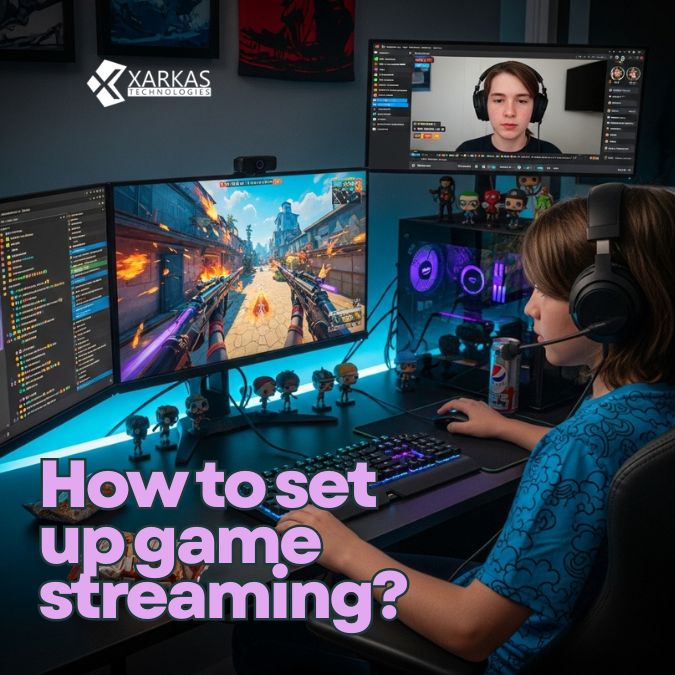
a. PC Hardware Requirements
Your PC is the backbone of your streaming setup. You don’t necessarily need a top-of-the-line gaming rig, but certain specifications will make your streaming experience smoother. At minimum, you’ll want a processor with at least four cores (Intel i5 or AMD Ryzen 5), 8GB of RAM (though 16GB is preferable), and a dedicated graphics card like the NVIDIA GTX 1660 or AMD RX 580.
Why does this matter? Streaming requires your PC to handle two demanding tasks simultaneously: running the game and encoding video for broadcast. If your hardware struggles, viewers will experience stuttering, lag, or poor quality streams.
b. Internet Connection Specifications
Your internet connection is just as crucial as your hardware. For streaming in 1080p at 60 frames per second, you’ll need an upload speed of at least 6-10 Mbps. Notice I said upload, not download—streaming sends data from your computer to the internet, so upload speed is what counts here.
How can you check your upload speed? Simply run a speed test online, and if your numbers fall short, consider upgrading your internet plan or adjusting your streaming resolution.
c.Additional Peripherals
Beyond your PC and internet, you’ll want a decent microphone for clear audio communication with your audience. A USB microphone like the Blue Yeti or Audio-Technica AT2020 works wonderfully for beginners. A webcam adds a personal touch to your stream, allowing viewers to see your reactions. Finally, consider investing in good lighting to ensure you’re visible and professional-looking on camera.
Choosing Your Streaming Platform
a.Twitch
Twitch remains the king of game streaming platforms, boasting millions of daily viewers and a thriving community. It’s particularly popular for live gaming content and offers robust features for streamers, including subscriptions, bits (virtual currency), and integrated chat.
b. YouTube Gaming
YouTube Gaming leverages the massive reach of YouTube’s existing user base. If you already have a YouTube channel or prefer the platform’s discoverability through search, this might be your best bet. YouTube also allows you to easily archive streams as regular videos.
d. Facebook Gaming
Facebook Gaming has grown substantially and offers unique advantages if you already have a Facebook presence or want to tap into your existing social network. The platform provides straightforward monetization options and integrates well with Facebook’s social features.
e. Other Platforms
Don’t overlook alternatives like Kick, Trovo, or even multi-streaming to several platforms simultaneously. Each has its own community and features that might align better with your streaming goals.
Selecting Broadcasting Software
a. OBS Studio
Open Broadcaster Software (OBS) Studio is the gold standard for streaming software—and it’s completely free. This open-source program offers incredible flexibility, allowing you to customize virtually every aspect of your stream. While it has a steeper learning curve than some alternatives, mastering OBS gives you unparalleled control.
b. Streamlabs OBS
Streamlabs OBS is built on OBS but adds a more user-friendly interface and pre-built themes. It includes integrated alerts, widgets, and overlays, making it easier for beginners to create professional-looking streams without extensive technical knowledge.
c. XSplit
XSplit is a premium option (though a free version exists with limitations) that offers a polished, intuitive interface. It’s particularly good if you want something that works well right out of the box with minimal configuration.
d. NVIDIA GeForce Experience
If you have an NVIDIA graphics card, GeForce Experience includes built-in streaming capabilities. While less customizable than OBS, it’s incredibly simple to use and leverages your GPU’s encoding capabilities efficiently.
Setting Up Your Broadcasting Software
a. Installing OBS Studio
Let’s walk through setting up OBS Studio since it’s the most popular choice. First, download OBS from the official website and run the installer. The setup wizard will guide you through initial configuration, but we’ll dive deeper into optimization shortly.
b. Configuring Video and Audio Settings
Once installed, open OBS and navigate to Settings. Under the Video tab, set your base resolution to match your monitor (typically 1920×1080) and your output resolution to what you’ll stream (1080p or 720p depending on your internet speed). Set your frame rate to either 30 or 60 FPS.
In the Audio tab, select your microphone as the Mic/Auxiliary Audio device and your desktop audio device for game sounds. This ensures both your voice and game audio are captured.
c. Adding Sources and Scenes
Scenes in OBS are collections of sources—think of them as different layouts for your stream. You might have a “gaming” scene, a “starting soon” scene, and a “chatting” scene.
Game Capture
To capture your game, create a new scene, then add a Game Capture source. This method specifically captures your game window, providing optimal performance. Select the game from the dropdown menu (you may need to launch the game first).
Display Capture
Display Capture records your entire screen. While less efficient than Game Capture, it’s useful for streaming multiple applications or games that don’t work with Game Capture.
Window Capture
Window Capture focuses on a specific window, offering a middle ground between Game Capture and Display Capture. It’s useful for streaming applications that aren’t games.
Connecting Your Streaming Platform
a. Getting Your Stream Key
Your stream key is like a password that connects your broadcasting software to your streaming platform. To find it on Twitch, go to your Creator Dashboard, click on Settings, then Stream. Copy your Primary Stream Key (keep this private!).
For YouTube, navigate to YouTube Studio, select “Go Live,” and you’ll find your stream key under “Stream settings.”
b. Linking Your Account to OBS
In OBS, go to Settings > Stream. Select your platform from the Service dropdown, then paste your stream key into the Stream Key field. Click Apply, then OK. You’re now connected!
Optimizing Stream Settings for Performance
a. Resolution and Frame Rate
Your resolution and frame rate determine how sharp and smooth your stream appears. While 1080p at 60 FPS looks fantastic, it requires significant upload bandwidth and processing power. If you’re experiencing issues, try 720p at 30 FPS—it still looks good while being much less demanding.
b. Bitrate Configuration
Bitrate controls the amount of data transmitted per second, directly affecting stream quality. For 1080p at 60 FPS, aim for 6000 Kbps. For 720p at 30 FPS, 3000-4000 Kbps works well. Remember, your bitrate can’t exceed your upload speed, so adjust accordingly.
c. Encoder Selection
Your encoder compresses video for streaming. The x264 encoder uses your CPU, while NVENC (NVIDIA) or VCE (AMD) use your graphics card. GPU encoding typically provides better performance with minimal quality loss, making it ideal for most streamers.
Audio Setup for Quality Streaming
a. Microphone Configuration
Good audio is arguably more important than good video—viewers will tolerate lower resolution but not poor sound. Position your microphone close to your mouth (about 6-8 inches away) and adjust input levels so your voice peaks around -12 dB to -6 dB in OBS.
b. Managing Game and Desktop Audio
Balancing game audio with your voice is crucial. You want viewers to hear both clearly without one drowning out the other. In OBS, adjust the audio mixer sliders so your microphone is slightly louder than game audio. As a rule of thumb, game audio should sit around 70-80% of your microphone volume.
c. Audio Filters and Enhancements
OBS includes audio filters that dramatically improve sound quality. Right-click your microphone in the audio mixer and select Filters. Add a Noise Suppression filter to reduce background noise, a Compressor to even out volume levels, and optionally a Noise Gate to cut audio when you’re not speaking.
Enhancing Your Stream with Overlays and Alerts
a. Creating Custom Overlays
Overlays add visual polish to your stream, displaying information like your social media handles, recent followers, or donation goals. You can create custom overlays using graphic design software or download pre-made templates from sites like Nerd or Die, Own3d, or Streamlabs.
b. Setting Up Stream Alerts
Stream alerts notify you and your viewers when someone follows, subscribes, or donates. Services like Streamlabs, StreamElements, or TikFX provide customizable alerts that integrate with OBS as browser sources.
c. Adding Chat Boxes and Widgets
Displaying your chat on stream helps viewers follow conversations and makes your stream feel more interactive. Add a browser source in OBS and link it to your chat overlay URL from your streaming platform or alert service.
Testing Your Stream Before Going Live
a. Running a Test Stream
Before your official debut, run a test stream. Most platforms offer a way to stream privately—on Twitch, you can stream to just yourself, and on YouTube, you can create an unlisted stream. This lets you verify everything works without broadcasting to the world.
b. Checking Audio and Video Quality
During your test, check the recording or watch on another device. Is your microphone clear? Can you hear the game? Is the video smooth without stuttering? Make adjustments as needed based on what you observe.
c. Monitoring System Performance
Keep an eye on OBS’s performance statistics (View > Stats). Watch for dropped frames, encoding lag, or high CPU usage. If you see issues, you may need to lower your stream settings or close background applications.
Going Live and Engaging with Your Audience
a. Starting Your First Stream
The moment has arrived! Click “Start Streaming” in OBS, then visit your channel to confirm you’re live. Take a deep breath—nervousness is completely normal. Start by greeting any viewers who join and explaining what you’ll be playing.
b. Interacting with Viewers
Engagement is what separates great streamers from mediocre ones. Acknowledge viewers by name when they chat, answer questions, and create opportunities for interaction. Ask your audience questions, take suggestions for gameplay decisions, or simply share your thoughts as you play.
c. Managing Chat and Moderation
As your channel grows, chat moderation becomes essential. Appoint trusted community members as moderators to help manage spam, enforce rules, and keep conversations positive. Most platforms offer moderation tools and bot commands to automate some of this work.
Troubleshooting Common Streaming Issues
a. Fixing Lag and Dropped Frames
Experiencing dropped frames? This usually indicates your internet upload can’t keep up with your bitrate, or your PC is struggling to encode. Try lowering your bitrate, reducing your resolution, or switching to GPU encoding. Close unnecessary background applications consuming bandwidth or processing power.
b. Resolving Audio Desync
Audio out of sync with video is frustrating for viewers. This often happens when using multiple audio devices or capture methods. In OBS, you can adjust audio sync offset under Advanced Audio Properties. Test different values until audio and video align perfectly.
c. Addressing Connection Problems
If you’re experiencing connection issues, check your internet stability. Wired Ethernet connections are far more reliable than WiFi for streaming. You might also try connecting to a different server on your streaming platform—sometimes specific servers experience problems.
Growing Your Streaming Channel
a. Consistency and Scheduling
Consistency is arguably the most important factor in channel growth. Stream on a regular schedule so viewers know when to find you. Even if you’re starting with just a few hours per week, stick to those times religiously. Your audience will grow as people discover they can rely on you being there.
b. Promoting Your Stream
Don’t just stream and hope people find you—actively promote your content. Share highlights on social media, create YouTube videos from your streams, engage in gaming communities (without spamming), and network with other streamers. Collaboration can introduce you to new audiences.
c. Building a Community
A loyal community is your greatest asset. Create a Discord server where viewers can chat between streams. Remember regular viewers’ names and interests. Celebrate milestones together. When people feel like they’re part of something special, they’ll keep coming back and bringing friends.
Advanced Streaming Tips
a. Multi-Platform Streaming
Once you’re comfortable with basic streaming, consider broadcasting to multiple platforms simultaneously using services like Restream or StreamElements. This maximizes your potential audience, though you’ll need to manage chat from multiple sources.
b. Using Stream Deck for Control
A Stream Deck—a physical device with programmable buttons—allows you to control your stream with a button press. Switch scenes, trigger sound effects, adjust audio, or post social media updates without Alt-Tabbing from your game.
c. Monetization Options
When you’re ready to monetize, explore your platform’s partnership program (Twitch Affiliate/Partner, YouTube Partner). Additionally, consider sponsorships, merchandise, Patreon, or direct donations through services like StreamElements or Ko-fi. Diversifying income streams provides more stability than relying on a single source.
Conclusion
Setting up game streaming on your PC is an exciting journey that opens doors to creativity, community, and potentially even career opportunities. While the technical setup might seem overwhelming initially, breaking it down into manageable steps makes it entirely achievable. Start with the basics—decent hardware, reliable internet, and free software like OBS Studio—then gradually enhance your setup as you grow.
Remember, every successful streamer started exactly where you are now. Focus on enjoying the process, improving incrementally, and building genuine connections with your audience. Technical perfection matters far less than authenticity and consistency. So what are you waiting for? Your streaming adventure begins now—go ahead and hit that “Start Streaming” button!
FAQs
1. Do I need an expensive PC to start streaming?
Not necessarily! While a better PC provides a smoother experience, you can start streaming with mid-range hardware. A PC with a quad-core processor, 8GB RAM, and a dedicated graphics card can handle streaming at 720p. You can always upgrade later as your channel grows.
2. What’s the minimum internet speed required for streaming?
For 720p streaming at 30 FPS, you’ll need at least 3-4 Mbps upload speed. For 1080p at 60 FPS, aim for 6-10 Mbps upload. Remember, upload speed is what matters for streaming, not download speed. Test your connection before committing to stream settings.
3. Should I stream on Twitch or YouTube?
Both platforms have advantages. Twitch is more focused on live streaming with a dedicated gaming community, making it easier to grow initially. YouTube offers better discoverability through search and allows streams to function as regular videos afterward. Consider where your target audience already spends time.
4. How long should my first streams be?
Start with 2-3 hour streams to build stamina and consistency without burning out. As you become more comfortable, you can extend to 4-6 hours if desired. Quality matters more than quantity—a highly engaged 2-hour stream beats a boring 8-hour marathon.
5. When can I start making money from streaming?
Most platforms require you to meet certain criteria before monetization. Twitch Affiliate requires 50 followers, 500 minutes broadcast, 7 unique broadcast days, and an average of 3 concurrent viewers over 30 days. YouTube requires 1,000 subscribers and 4,000 watch hours. Focus on building your community first, and monetization will follow naturally.


No Comment! Be the first one.